Account settings
Each account has its own settings. Open the account from Home, then tap ⋯ (three dots) in the top corner.
What's in an account's settings?
Banking
- Transactions: every deposit, withdrawal, trade, dividend and fee, newest first
- Recurring Deposit: set one up, change it, or stop it. See Deposits and withdrawals
- Bank Accounts: your linked banks. See Link a bank
Beneficiaries & Contacts
- Beneficiaries and Trusted Contacts. See Beneficiaries and trusted contacts
Account Actions
- Change portfolio and Customize Widgets (below)
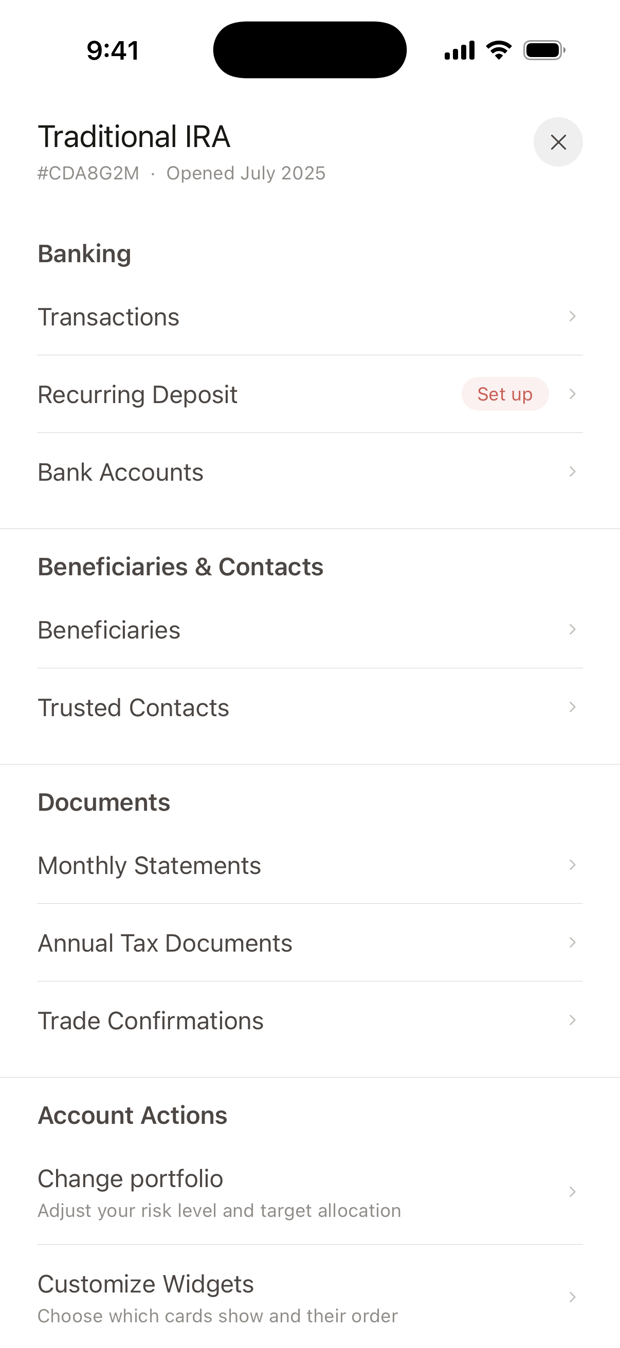
Statements and tax forms are in your Document Vault, not here. See Statements and tax forms.
How do I change my portfolio?
- Open Change portfolio. In the account's settings, under Account Actions.
- Compare the strategies. Swipe across the five: Income, Conservative, Moderate, Growth and Aggressive. Your current one says Current Strategy.
- Choose a new one. Tap Change Strategy, check the change, then tap Confirm Change.
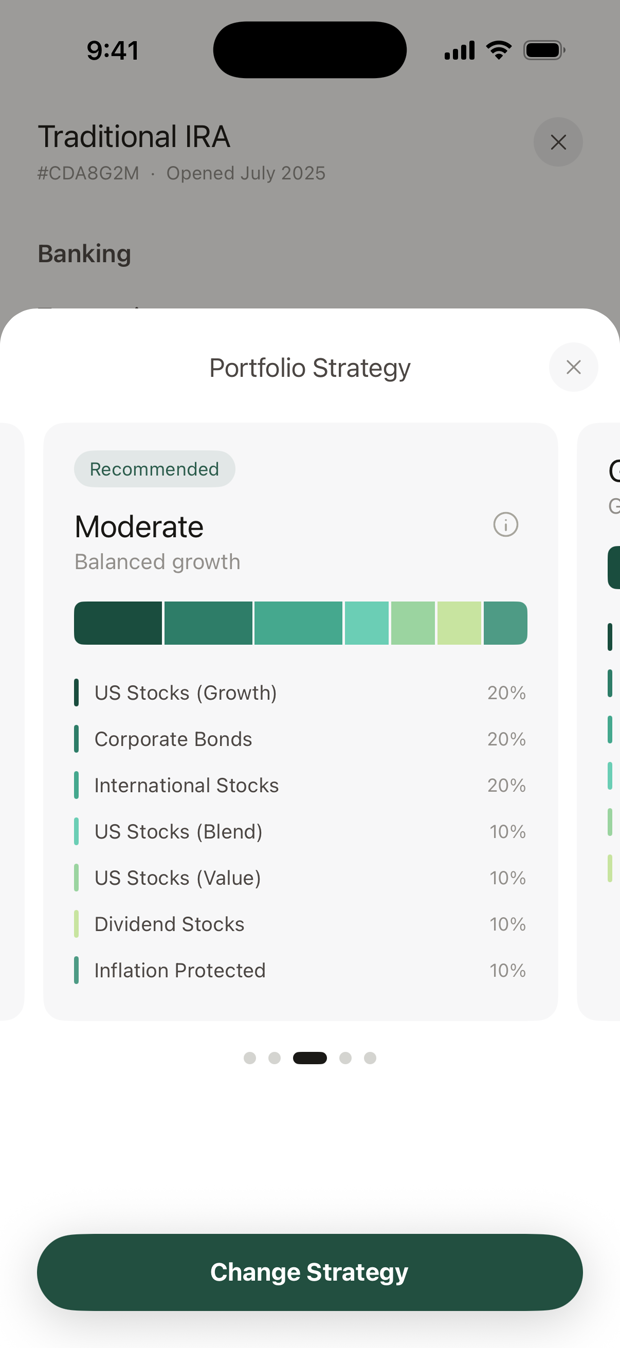
The new strategy applies to this account only. The change can take a few business days to complete.
How do I choose which cards show on my accounts?
Tap Customize Widgets in settings. Choose which cards appear at the top of your account screens (Allocation, Performance, Contributions and Exposure) and their order, then tap Apply. Your choice applies to all your accounts.
What's different for a 401(k)?
A connected 401(k) has a shorter list:
- Activity: Transactions and Update Contributions
- Beneficiaries: one list, with no contingent group
- Account Actions: Management style, Change portfolio (if we manage the plan for you) and Customize Widgets
See Connect your 401(k).
Why don't I see a row?
- Recurring Deposit doesn't appear on the accounts used for a backdoor Roth.
- Some older accounts, not held at Apex Clearing, show a Documents section here instead of using Document Vault.
- Your spouse's accounts don't offer Change portfolio.
Can't find something? Email support@alooola.com and we'll point you to it.